Installation Guide
Prerequisites
Internet Information Server 10.0 Express - Web Server
-
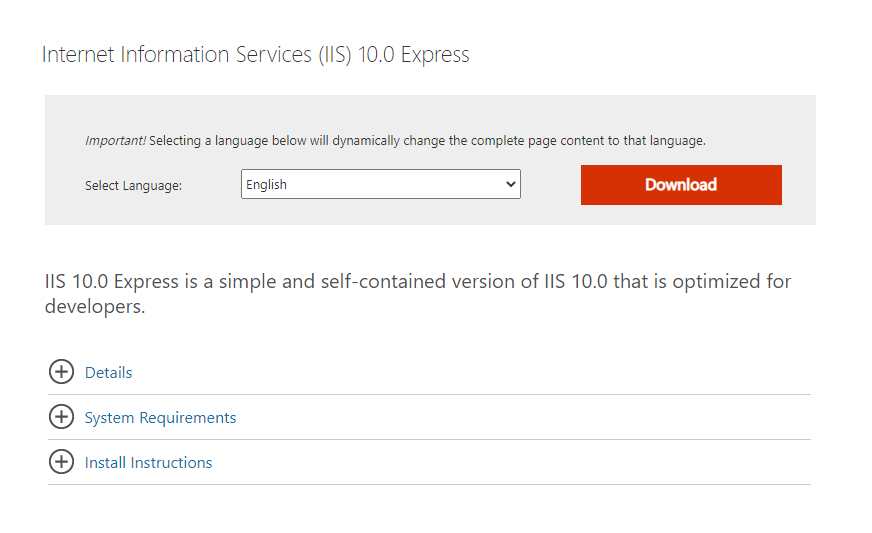
Go to the URL to download Internet Information Server 10.0 Express.
-
Select a language and click on Download.
-
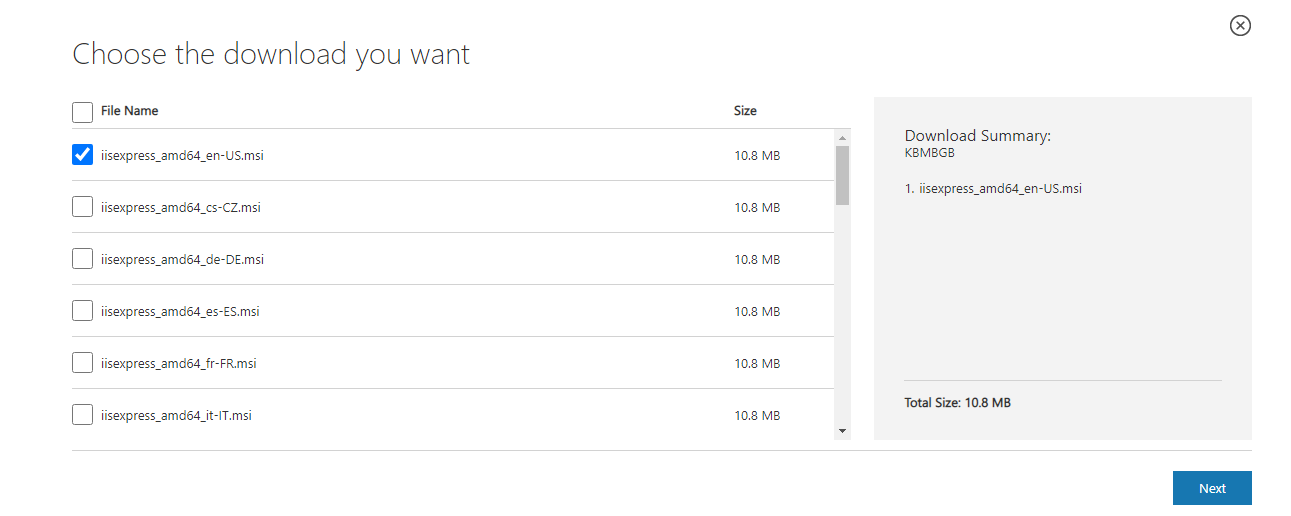
Check the option iisexpress_amd64_en-US.msi and click Next.
-
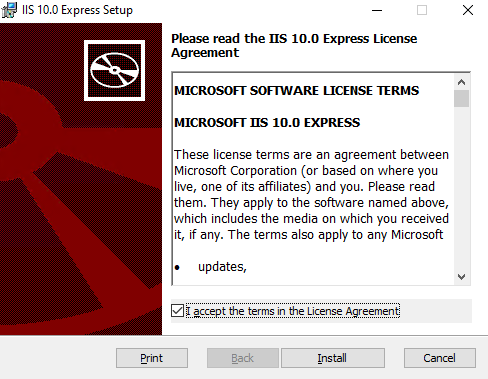
Open the installer IIS Express and check I accept the terms finally click Install.
dRevealS Lite
Desktop Installer
-
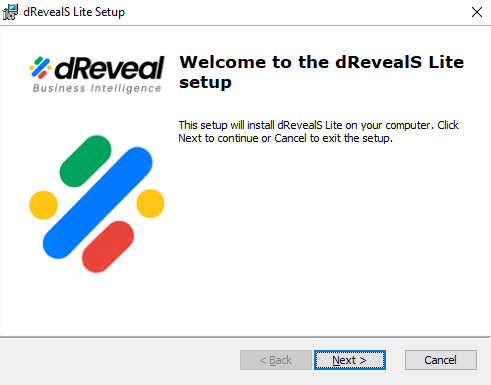
Double-click in dRevealSLite.msi and click Next.
-
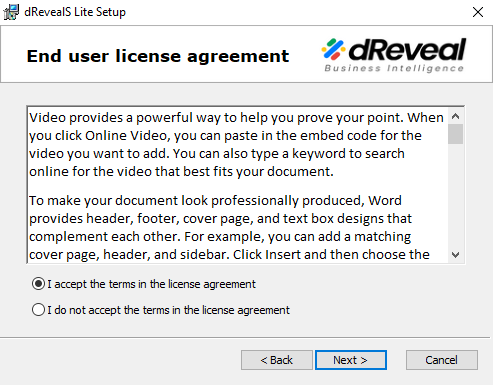
Check I accept the terms in the license agreement and click Next.
-
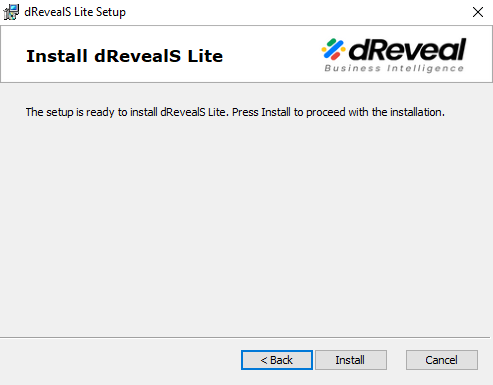
Finally, click Install.
Chrome Extension
-
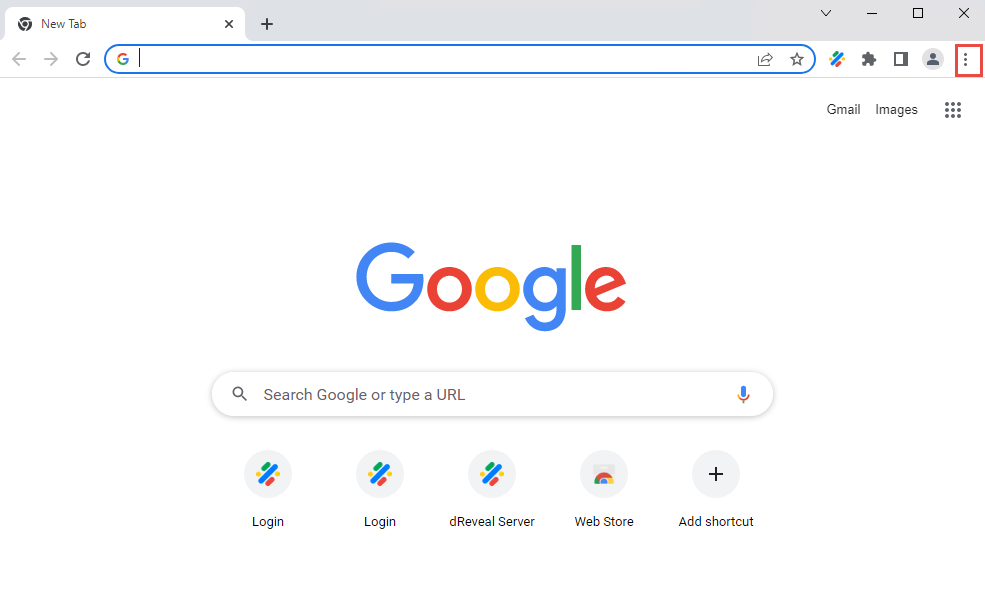
Open Chrome and click Customize and control Google Chrome.
-
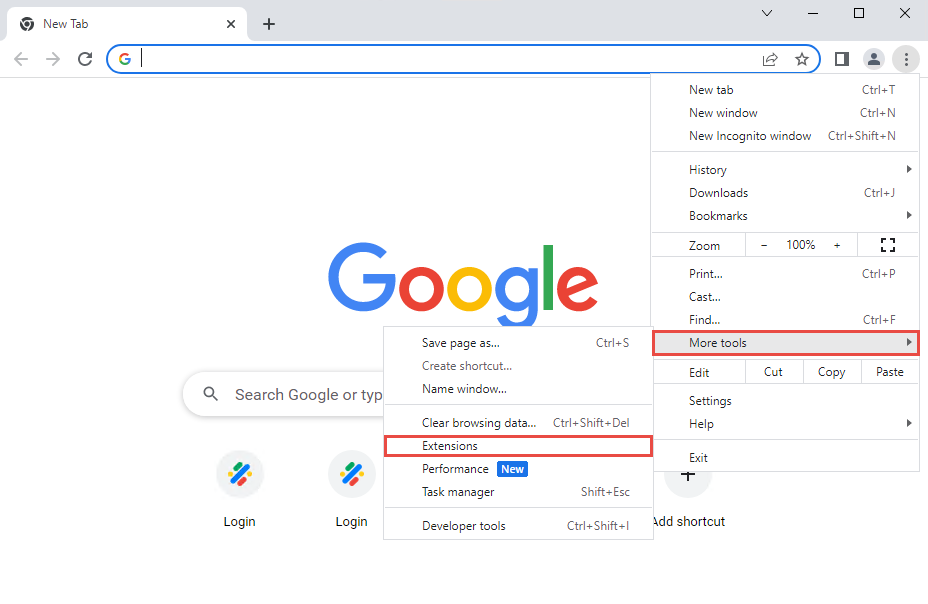
Select More tools and click Extensions.
-
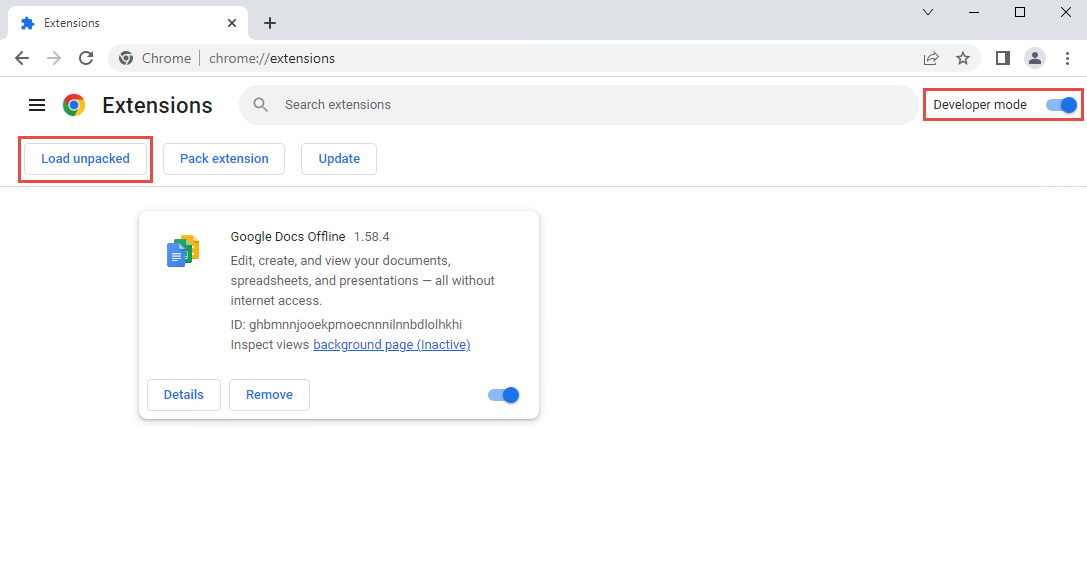
Activate Developer mode and click Load unpacked.
-
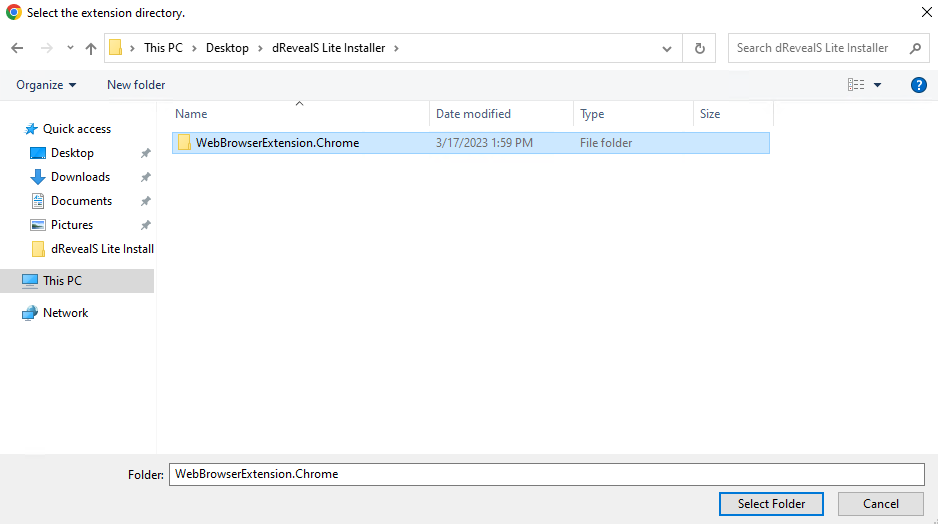
Search the folder with WebBrowserExtension.Chrome and click Select Folder.
-
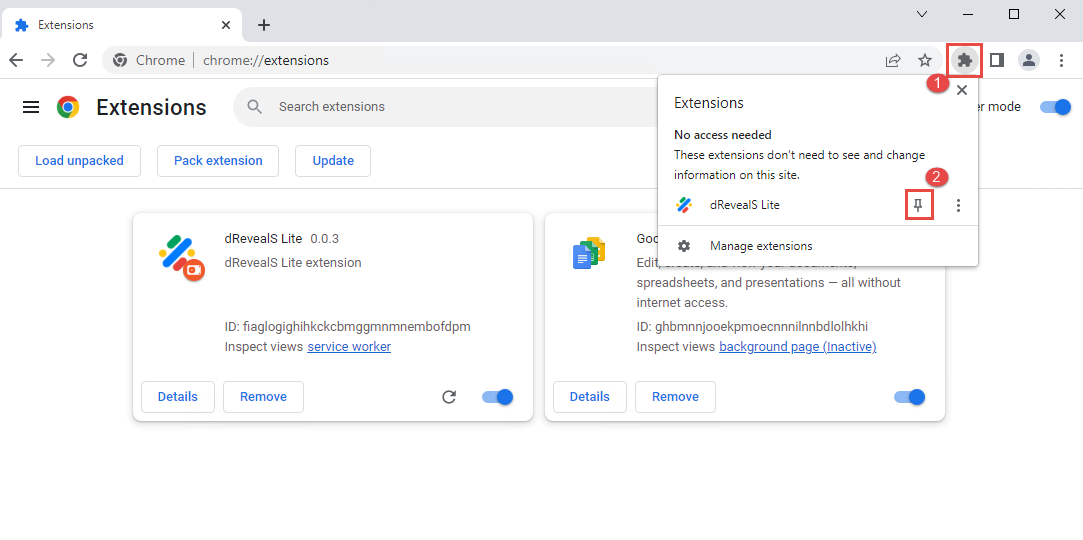
Click the icon extensions and click the icon pin.
Post Installation
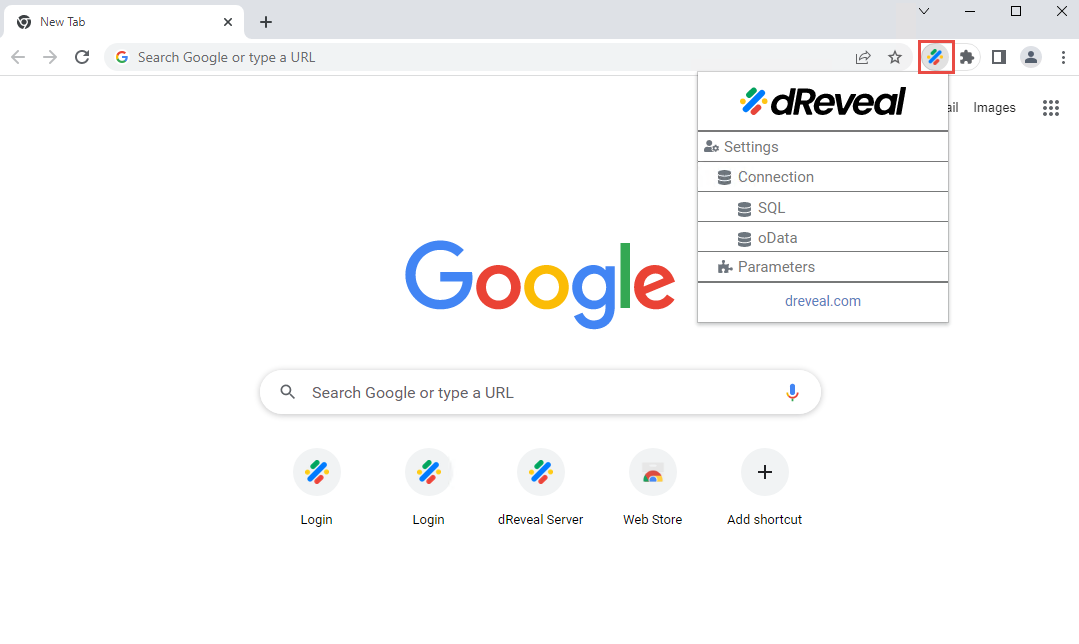
Show Settings
The dRevealS Lite has the following settings:
Data Source Connection
Add SQL Connection
First, we need to create the data source for the reports. For this demo, on the right top menu, please go to the following section SQL or oData, depending on your data source.
Settings → Connection → SQL
Settings → Connection → oData
-
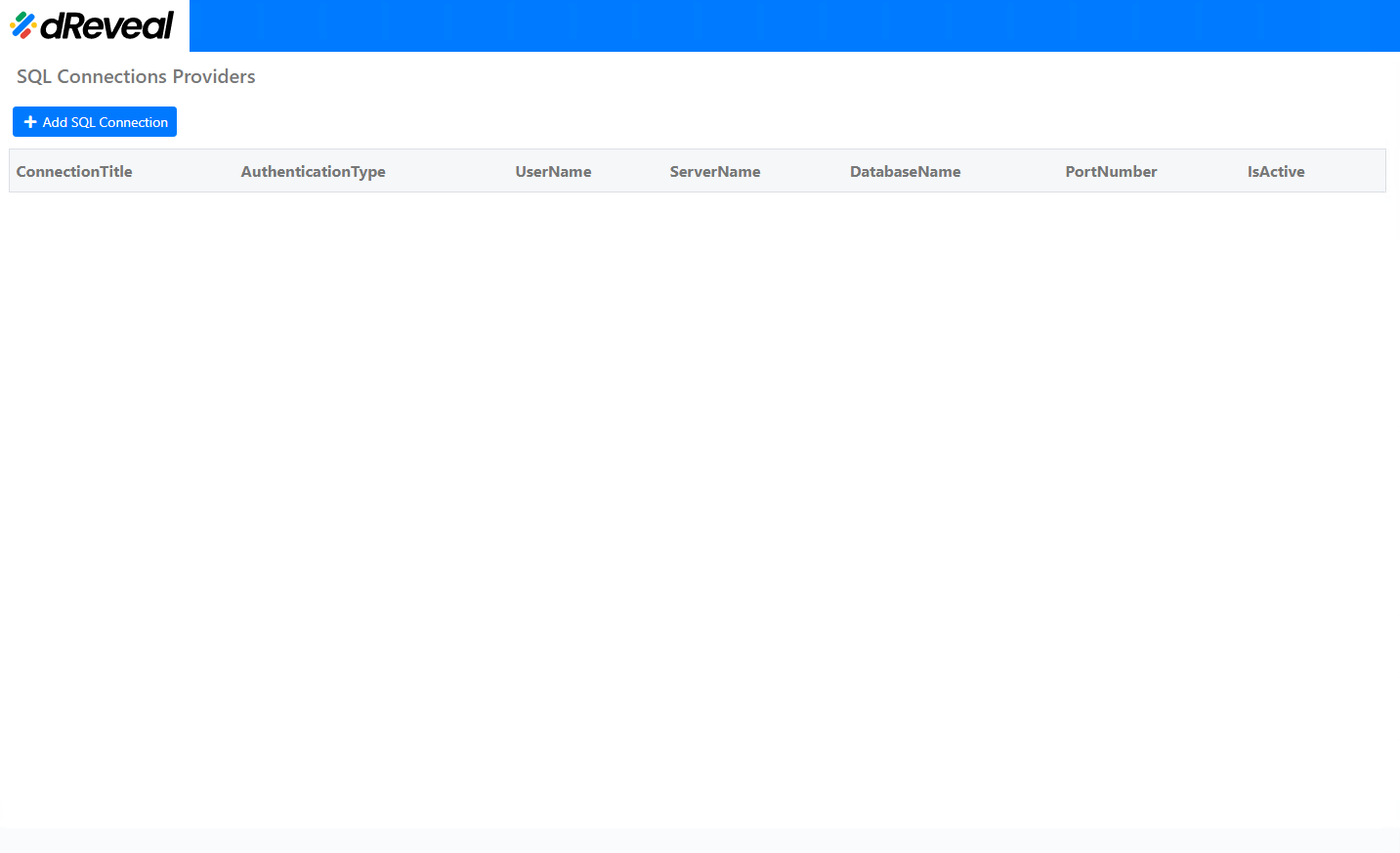
In this case, set SQL connection.
-
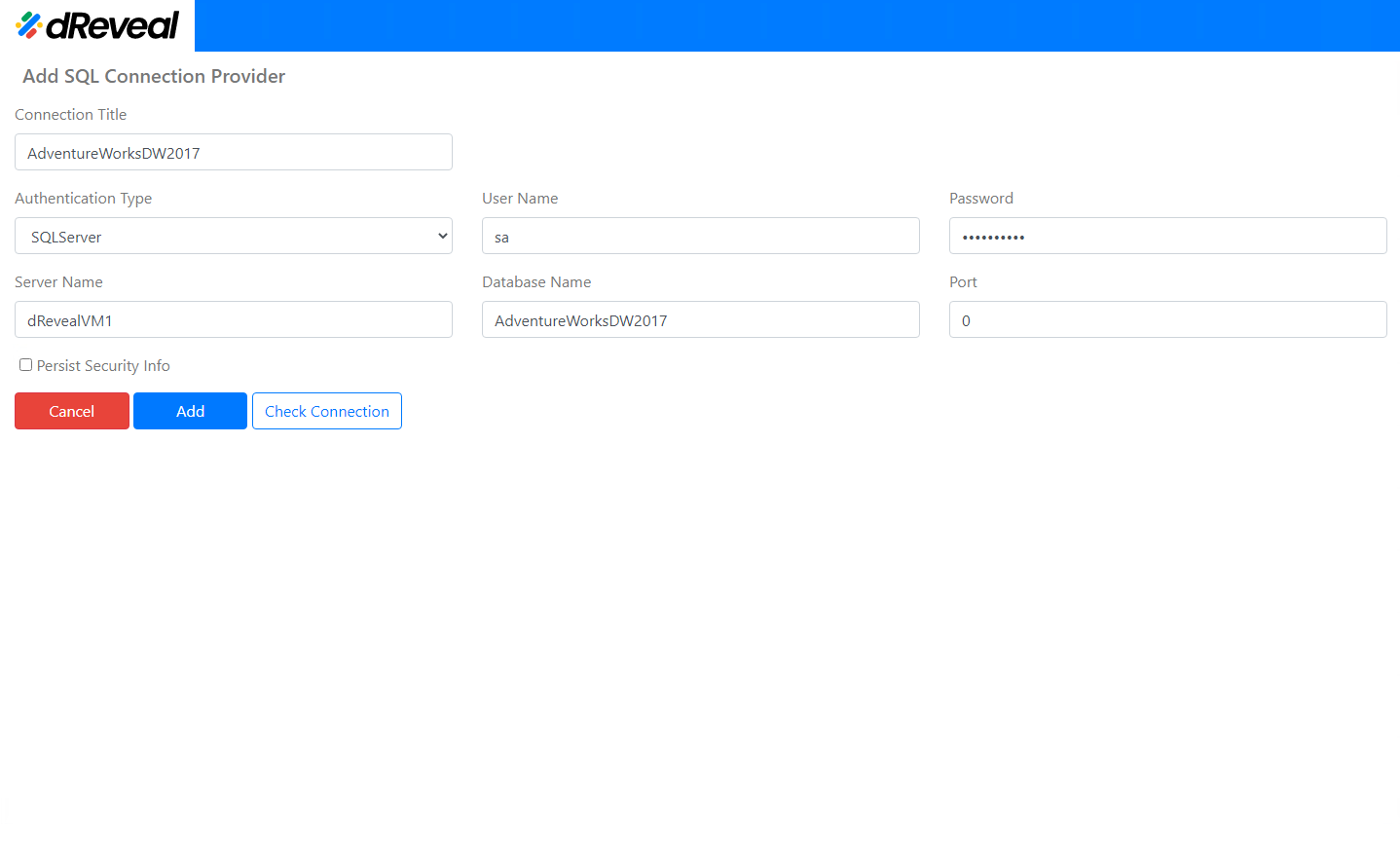
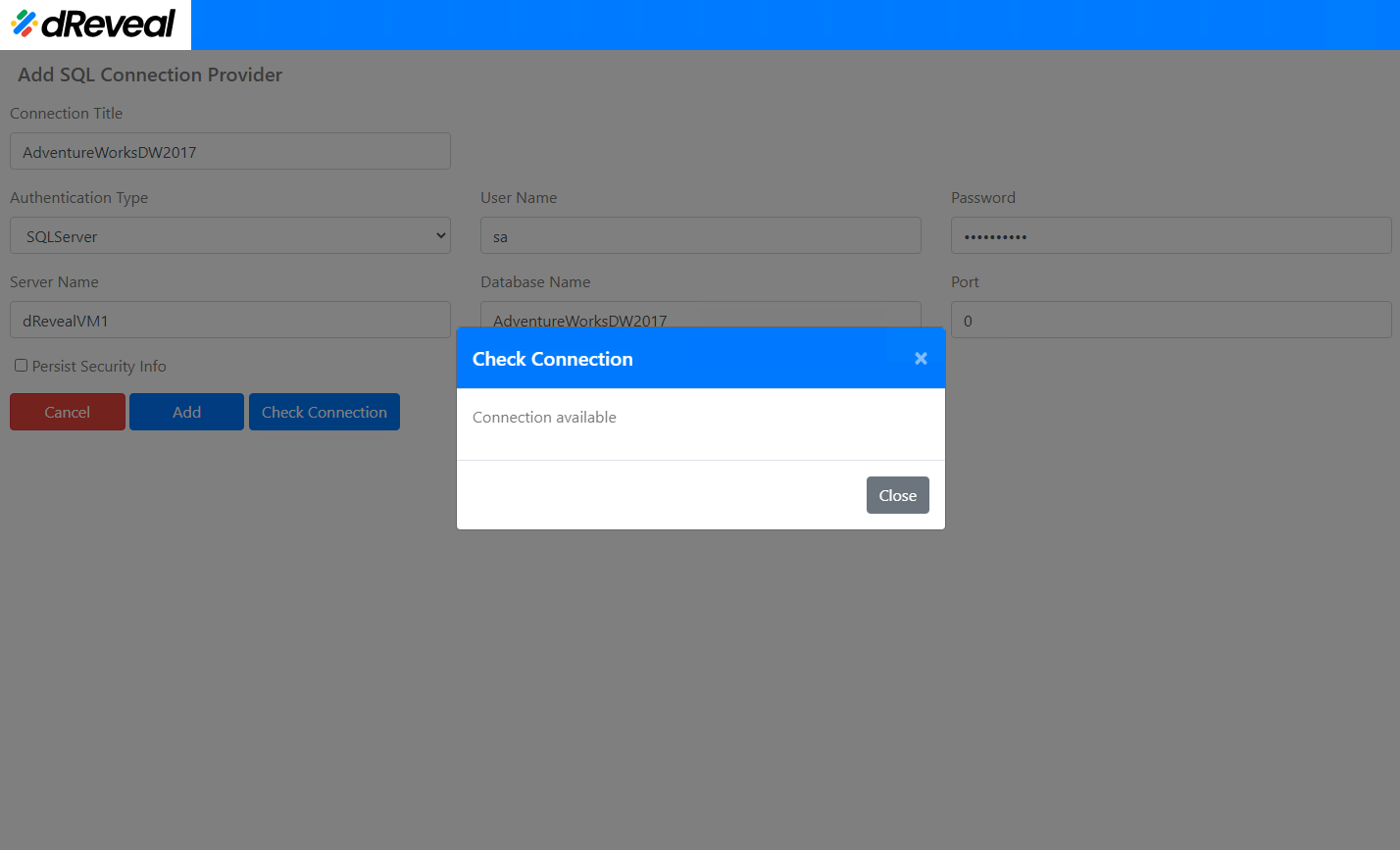
Click Add SQL Connection and fill in the information.
 Note
NoteThis installation is using a sample database AdventureWorks. You can download it from this URL
-
Click Check Connection to validate the SQL Connection, must show the following message:
-
Click Close and click Add.
Activate SQL Connection
-
In the SQL Connections, select a connection, click Actions and click Activate.
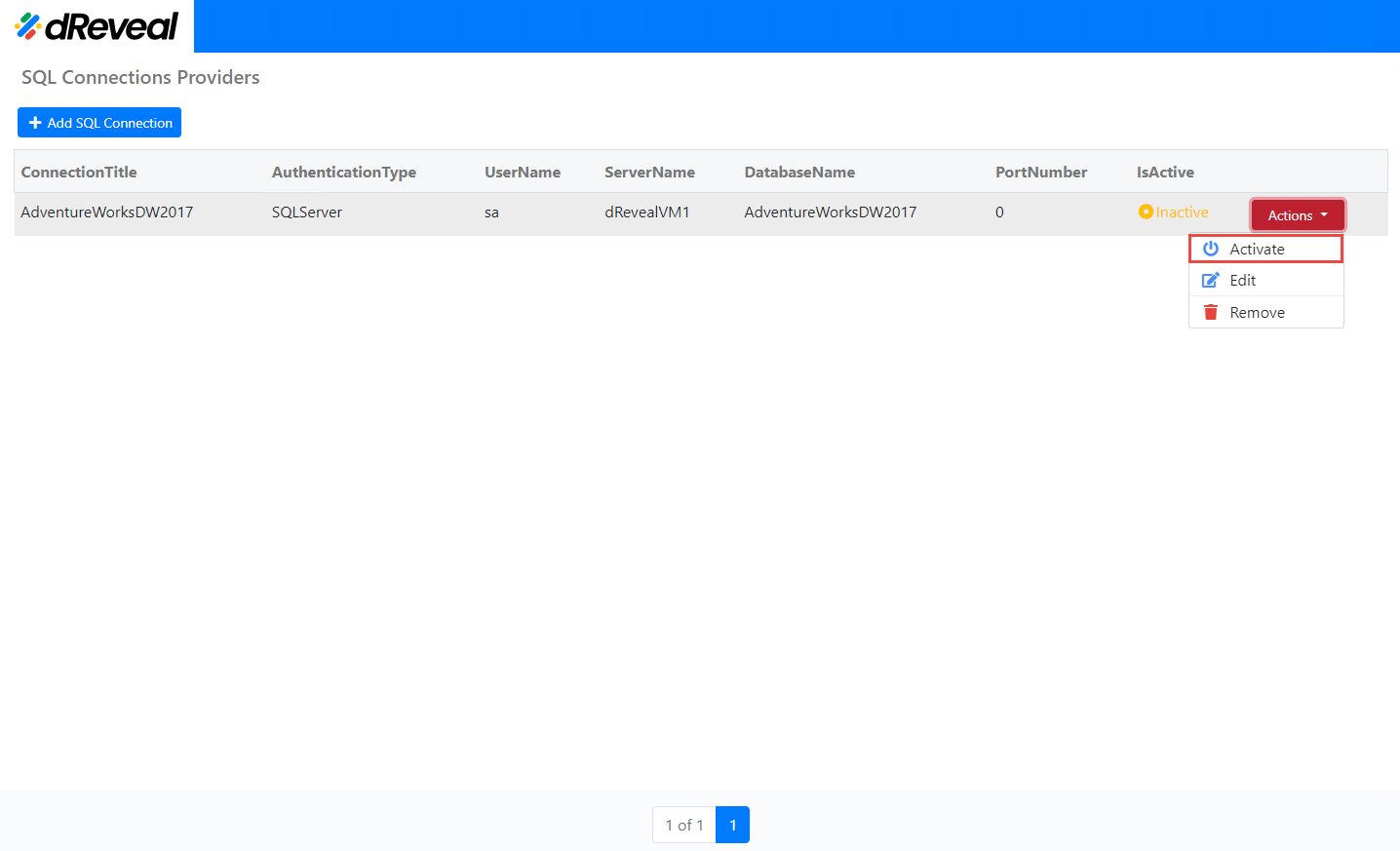
Now you are ready to use dRevealS Lite.
Show DReveal Report
Drag and Drop in Google chrome the dReveal Report, and will redirect automatically to show it: